How to stop spam emails while keeping the messages you need
Choose between reporting spam, blocking, unsubscribing and filtering. Reduce inbox noise without hiding receipts, security alerts or wanted mail.
Report unknown junk as spam, report deceptive messages as phishing, and unsubscribe only from legitimate mailing lists you recognise. Use a narrow filter for repeat unwanted mail, check what it catches and keep important messages visible. No setting can guarantee that strangers will never send to your address again.
In this guide
Choose the action that matches the email
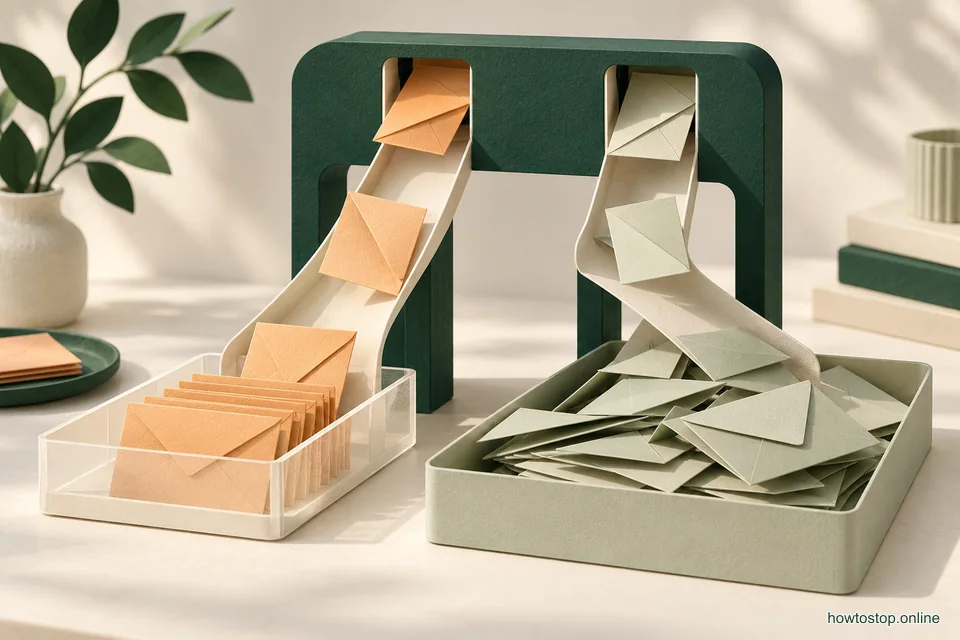
To reduce spam, use your email service’s Report spam or Junk control for unwanted messages from unknown senders. If a message tries to trick you into giving a password, payment or personal information, use Report phishing where your service provides it. For a real newsletter you recognise, unsubscribe through the service or your account with the sender.
Those actions solve different problems. Blocking one address can help with one sender. Unsubscribing can stop a legitimate mailing list. Filtering can move matching messages out of your inbox. None is a promise that your address will disappear from every spammer’s list.
You do not have to investigate every message to clean up your inbox. Start with the repeat pattern that causes the most noise. Make the smallest useful change, then check that wanted messages still reach you.
First separate four kinds of unwanted mail
| What arrived | A sensible first action | What to avoid |
|---|---|---|
| A newsletter from a shop you used | Unsubscribe or change its email preferences | Blocking all mail from the shop if you still need receipts |
| Unknown sales messages sent in bulk | Report spam | Replying to demand removal |
| A fake security warning or payment demand | Report phishing; verify separately if needed | Using its login link or calling its supplied number |
| A real sender you no longer want contact from | Block or create a carefully chosen rule | Assuming the block cancels an account or an obligation |
For example, a shop’s weekly sale email and your order confirmation may come from different addresses, but they may also share a domain. A rule that catches everything from that domain could hide both. Decide which kind of message you want to stop before applying a broad block.
Likewise, a display name saying “Your Bank” is not enough to decide a message is real. If you need to check an account, open the official app or use a saved, known address. You can verify the claim without trusting the route offered in the email.
In Gmail: report spam and correct mistakes
On Gmail in a computer browser, select the unwanted messages and choose Report spam above the message list. Google says reporting helps Gmail identify similar unwanted messages. It also receives a copy of reported messages for analysis.
If a wanted message is in Spam, select it and choose Not spam. Reporting junk and correcting mistakes both matter: a useful inbox needs to reject unwanted messages without quietly losing the ones you need.
For one persistent sender, open the message, choose the three-dot More menu beside Reply and select Block followed by the sender’s name. The same menu offers an unblock option for a blocked sender. Gmail sends later mail from blocked addresses to Spam; the block does not force the sender to stop sending.
Do not open attachments or follow a message’s links just to report it. Use controls belonging to Gmail itself. App layouts can differ from the computer version, so look for the service’s own reporting menu rather than a button drawn inside the message.
In Outlook.com: manage real subscriptions
In Outlook.com, open Settings > Mail > Subscriptions. Find a recognised subscription and choose Unsubscribe, then confirm. Some emails will not appear as subscriptions, including some already treated as junk or sent from changing addresses.
The subscription entry’s three-dot menu also provides a block option. Review blocked addresses through Settings > Mail > Junk email. These paths describe Outlook.com, not every version of the Outlook desktop application or every workplace setup.
If your email is managed by work or school, use the reporting control your organisation provides. Ask its support team how to report a suspicious message if the expected button is missing. Do not forward the message to colleagues asking them to click and check it.
The useful result is fewer unwanted messages where you read your real mail. A subscription may be stopped at its source, while a block may simply change where mail lands. Judge the result by what happens rather than assuming every control means the same thing.
When to unsubscribe, and when to leave the link alone
Unsubscribe from a list when you recognise the sender and have a reasonable basis to believe the message belongs to that organisation. Your email service may display its own unsubscribe control outside the message. You can also open the sender’s official website yourself, sign in and change marketing preferences there.
Do not use an unknown message’s unsubscribe link as a way to find out whether it is safe. A deceptive message may use any friendly label to get you to a page. You do not owe an unfamiliar sender a visit, a reply or an explanation.
If an unsubscribe page asks you to enter a password or payment details, stop and verify the request independently. A request to stop marketing should not become a reason to hand an unknown page access to your account.
Consider an example. You bought shoes from a store and remember accepting offers. You can change that store’s email preferences. A different email arrives claiming to be a refund from a store you have never used. Its presence in your inbox does not make it a subscription you need to cancel. Report it instead of interacting with its instructions.
Use filters for a pattern, not for every annoying word
A filter is a rule that acts on messages matching conditions you choose. It can be useful when the same unwanted mail keeps arriving in a recognisable form. It can also make important mail harder to find if the conditions are too broad.
In Gmail on a computer, open the search options beside the search box. Enter your conditions and run a search first. Inspect what the search finds. If it is accurate, use Create filter, choose the action and confirm. You can later edit or remove it through Settings > See all settings > Filters and Blocked Addresses.
Begin with a destination you can check, such as a label or folder, rather than automatic permanent deletion. For a trial, ask: “Would I be comfortable if every future message in these results skipped my attention?” If the answer is no, narrow the conditions.
Avoid a broad rule for words such as “payment”, “urgent”, “account” or “invoice”. Real messages use those words too. A rule that makes a spam count look better can still make your life worse if it hides a bill or a security alert.
Test a rule before trusting it
Use a few examples rather than trusting the first matching message. Look for an unwanted message the rule should catch, a wanted message from the same organisation and an unrelated message with similar wording.
For example, suppose you want to move a store’s daily offers out of the inbox. Search the exact sender address, then check whether the results also include order updates. If they do, the address alone does not distinguish the two types. You might need the store’s own marketing preferences instead of a mailbox rule.
After creating the rule, check its folder during your next ordinary email sessions. If wanted mail appears there, disable or change the rule and move those messages back. Removing a rule does not necessarily move every message it already handled. Check the destination as part of undoing the change.
Keep one short note: what the rule matches, where it sends mail and how to turn it off. That makes the rule a tool you control rather than a hidden part of your inbox that you forget exists.
Why blocking each new address can feel endless
If the sender changes addresses, a block on yesterday’s address will not match tomorrow’s new one. You can spend a lot of time building a list while the pattern continues. That does not mean you failed to find the one perfect block button.
Use the provider’s spam reporting for unknown bulk mail and reserve individual blocks for situations where the sender stays identifiable. Do not widen a rule to entire popular email services just because one spammer used them. You could block friends, customers and services sharing that provider.
Check your result in practical terms. Is junk reaching the inbox less often? Is checking email quicker? Can you find wanted messages? The number in a Spam folder may still rise while the inbox becomes much more useful.
You do not need to read the junk folder as carefully as your main inbox every day. Check it when expecting something missing and periodically when testing a new rule. Avoid turning spam management into another stream of unwanted reading.
If a sudden flood arrives
A large burst deserves a different response from the usual daily handful. Google notes that mass subscription messages can be used to bury important security messages. A flood alone does not prove your account or bank has been accessed, but it is a reason to check important accounts directly.
Open your email account’s security page through a known route. Look for unfamiliar activity or changes. Check payment and shopping accounts through their official apps or saved addresses for alerts you might otherwise miss. Do not use links in the flood to do this.
Avoid a hasty “delete everything today” rule while you check. That could hide exactly the real message you need. If you identify unauthorised activity, follow the affected service’s recovery process and contact the relevant provider through a known contact route.
For work email, tell your support team when the flood started and whether it is still arriving. Give a few examples using their preferred reporting method. They may be able to address a pattern at the service level without you managing thousands of messages individually.
If you already clicked or entered information
First separate what happened. Opening a page, downloading a file, entering a password and giving payment details call for different follow-up. Write down what you did while it is fresh, including the service the message claimed to represent.
For a password entered on a suspected fake page, go to the real service independently and change the affected password. If the same password was used elsewhere, change it there too. Use the service’s security and recovery guidance. If you gave financial details, contact the relevant financial provider promptly through a known route.
If you downloaded suspicious software or an attachment, use your device’s trusted security tools and official guidance. Do not install the “cleanup” product offered by the same message. The FTC’s phishing guide explains protective and reporting steps; its reporting services are for the United States, while local routes vary elsewhere.
Reduce new noise without rebuilding your whole digital life
For new sign-ups, decide whether you need marketing at all. Separate a service you must keep from a mailing list you do not. If your email provider offers aliases or a separate address, read how that feature works before using it for purchases or recovery.
Keep an address for account recovery that you will actually maintain. An elaborate system is unhelpful if you lose track of which inbox receives a password reset. Do not close an old address until essential accounts, records and contacts have a reliable replacement.
Set a small maintenance boundary. For example: report obvious junk during normal reading, unsubscribe from one real list when it becomes annoying and inspect a new filter until you trust it. You do not have to solve every piece of unsolicited mail in one sitting.
If the interruptions are alerts rather than emails, use the website notifications guide. If real work mail follows you into the evening, set a workable after-hours contact plan. Spam controls can protect your inbox; a clearer checking routine protects the time around it.
Sources and references
A useful next step, thoughtfully explained.
The HowToStop Multidisciplinary Team brings together practical guidance on habits, wellbeing and everyday change.
Our editorial approach